
Amethyst Jailbreak [iOS 12–iOS 13.7]
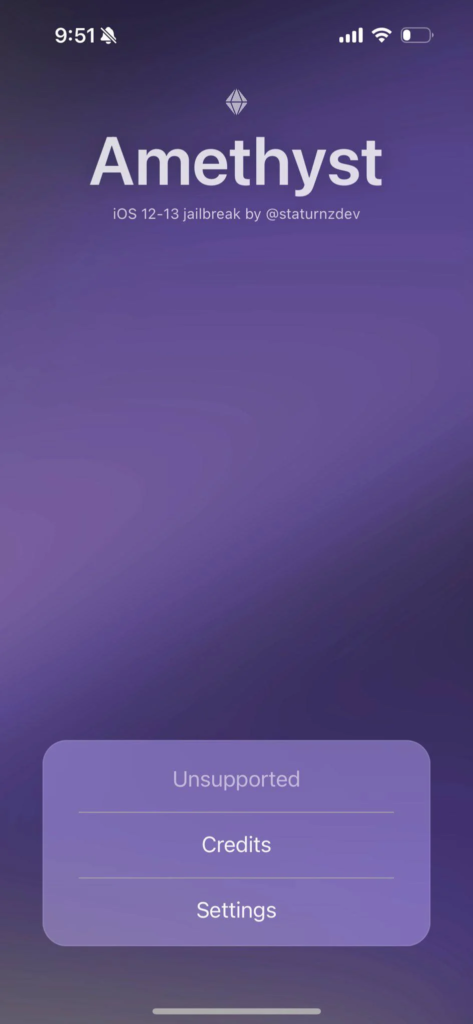
The Amethyst jailbreak is a semi-untethered solution designed for iPhone and iPad users who want more control over their devices.
Unlike fully untethered jailbreaks, you need to activate this jailbreak again after each restart. Even though that can be a bit inconvenient, it’s still a simple and reliable option for devices running iOS 12 to iOS 13.7.

Amethyst is compatible with a wide range of Apple devices, making it a flexible option for users who want to install tweaks, themes, and third-party apps beyond Apple’s default limitation.
How Amethyst Works
Before getting started, it’s important to understand the nature of a semi-untethered jailbreak. This means:
- Your device will return to a non-jailbroken state after restarting.
- You’ll need to reopen the Amethyst app and run the exploit again to regain jailbreak features.
- The process is quick and doesn’t require a computer after the initial setup (in most cases).
Additionally, if you’re using an A11 chip or newer device, or running iOS 13 or later, the Amethyst application must be re-signed every 7 days using your Apple ID. This is due to Apple’s app certificate restrictions for sideloaded apps.
Important Preparation Steps
To avoid issues during installation, keep these points in mind:
- If your device is already jailbroken using another tool (except Odysseyra1n or Chimera jailbreak), remove it completely before proceeding.
- Make sure your device has sufficient battery (at least 50% recommended).
- Backup your data using iCloud or iTunes in case something goes wrong.
- Use a stable internet connection throughout the process.
Taking these precautions helps ensure a smoother and more reliable jailbreak experience.
Required Downloads
To begin, gather the following tools and files:
- The latest version of the Amethyst jailbreak IPA file
- The newest release of PlumeImpactor
- The latest version of iTunes (required for Windows users)
If you prefer not to use a computer, you can check whether Amethyst is currently signed on jailbreaks.app. If available, you can install it directly on your device without sideloading.
Installing Amethyst Using PlumeImpactor
Follow these steps carefully to install the Amethyst app onto your device:
- Connect your iPhone or iPad to your computer using a USB cable.
- Unlock your device and tap Trust if prompted to allow the computer to access it.
- Open PlumeImpactor on your computer.
- Navigate to Settings → Sign In.
- Enter your Apple ID and password when prompted.
- Close the sign-in window after successful authentication.
- Drag and drop the Amethyst IPA file into the PlumeImpactor window.
- Click the Install button and wait for the process to complete.
After installation finishes, the Amethyst app will appear on your device’s home screen.
Trusting the Amethyst Application
Before launching the app, you need to manually trust the developer profile:
- Open Settings on your device.
- Go to General → Device Management (or Profiles & Device Management).
- Find your Apple ID under the developer app section.
- Tap on it and select Trust “<Your Apple ID>”.
- Confirm your choice.
Once trusted, the Amethyst app will open normally from your home screen.
Running the Amethyst Jailbreak
Now comes the main part—activating the jailbreak:
- Restart your device (this step is recommended for better success rates).
- As soon as your device powers back on, open the Amethyst app immediately.
- Tap the “Jailbreak” button.
- Wait for the process to begin.
At this stage, one of two things may happen:
- You will be prompted to reboot your device manually.
- Your device may automatically restart without warning.
If it reboots automatically:
- Wait for 1–2 minutes after the device turns back on.
- Then reopen the Amethyst app and continue.
- After the reboot, launch the Amethyst app again without delay.
- Tap “Jailbreak” for the second time.
This step is crucial for completing the jailbreak process.
Troubleshooting during Jailbreak
It’s normal for the jailbreak process to fail occasionally. If you encounter issues such as:
- The app crashing
- The device rebooting without installing the jailbreak
- No visible changes after running the exploit
Simply follow these steps:
- Wait 1–2 minutes after reboot
- Reopen the Amethyst app
- Tap “Jailbreak” again
You may need to attempt this process multiple times before it succeeds. Persistence is key with semi-untethered jailbreaks.
What Happens After Jailbreak?
Once the jailbreak is successful, you’ll notice new apps installed on your home screen:
- Sileo – A modern package manager for installing tweaks and apps
- Zebra – A lightweight alternative package manager
These tools give you access to a wide range of customizations, including:
- UI themes and icon packs
- System tweaks and enhancements
- Third-party applications not available in the App Store
From here, you can explore repositories and start customizing your device according to your preferences.
Re-Jailbreaking After a Reboot
Because Amethyst is semi-untethered, the jailbreak will be disabled whenever your device restarts or powers off. To regain jailbreak functionality:
- Open the Amethyst app again
- Tap “Jailbreak”
- Wait for the process to complete
However, there is an alternative method available for certain devices.
Using TotallyNotSpyware for Quick Re-Jailbreak [iOS 12 – iOS 12.5.8 only]
For users with:
- Devices powered by A10 (X) chips or older
- Running iOS 12 to iOS 12.5.8
You can use a browser-based method to re-enable the jailbreak without relying on the Amethyst app.
Important Note
This method does not install the jailbreak initially. You must first jailbreak your device using the Amethyst app before using this shortcut.
Steps to Re-Jailbreak via Safari
- Open Safari on your iPhone or iPad.
- Visit the jbme.h4ck.kr website.
- Tap the “re-jailbreak” button on the page.
- If any pop-ups or prompts appear, tap Close.
If an error appears saying:
“The webpage was reloaded because a problem occurred”
Do the following:
- Close Safari completely using the App Switcher
- Reopen Safari
- Refresh the page and try again
After a successful attempt, your device should return to a jailbroken state.
Limitations for Newer Devices
If you are using:
- A11 or newer devices
- iOS 13 or above
You cannot use the browser-based re-jailbreak method. Instead:
- You must keep the Amethyst app installed
- Re-sign it every 7 days using your Apple ID
- Use the app to re-enable the jailbreak after each reboot
This is a limitation imposed by Apple’s security system.
However, you can use Checkra1n Jailbreak on iOS 12- iOS 14.8.1 or Unc0ver Jailbreak iOS 11- iOS 14.8 as an alternative for Amethyst. Also refer iOS 12.5.8 Jailbreak or iOS 13.7 jailbreak pages for more jailbreak solutions.
Final Thoughts
Amethyst provides a reliable and flexible jailbreak solution for users on iOS 12 through iOS 13.7. While the semi-untethered nature requires occasional reactivation, the process is straightforward once you get used to it.
With tools like Sileo and Zebra included, users gain access to a powerful ecosystem of tweaks and customizations that can transform the iOS experience far beyond its default capabilities.
If you follow each step carefully and remain patient during retries, Amethyst can be an effective way to unlock the full potential of your device.