
iOS 27 Jailbreak
Special Thanks:
The iOS 27 Jailbreak (Semi Jailbreak method) is powered by the Darksword exploit developed by the Gigt Team. The underlying open-source jailbreak project was created by @Rexto.
After 4 years, the most stable jailbreak released for iOS 27 with Cydia, Sileo and Darsksword jailbreak app manager support.
Now this method upgraded for sevral versions; refer iOS 26.6 Jailbreak, iOS 26.7 Jailbreak, iOS 27.2 Jailbreak pages for information.
iOS 27 Jailbreak process (Online Method)
In this Jailbreak process, you need to generate a Jailbreak app according to your device data, and It is very easy. Read the complete guide carefully. Do not skip any step, even if the process appears simple.
Step 1 – Save your device data
Use following button to save your data, allow download data for your name – your device.json file.
If the file downloads successfully, the button will turn blue, and the downloaded file will be available in your Files app.
Step 2 – Generate Jailbreak app
Use following button to upload you created yourname-yourdevice.json file
Then it generate an app for Jailbreak iOS 27 device.
Make sure to use Apple Safari browser for this step.
After generation complete, tap continue > download mobileconfig > Allow. Then install app to your device.
Step 3 – Install iOS 27 jailbreak app
Open Settings, Then you can find the app, Open it to your device just entering your device passcode.
Step 4 – Open your app and make sure it is correct version
Now the app should show your name and your device. If you find these data are correct, you can continue the verification process.
Otherwise regenerate the app using step 2
Step 5 – Verify the app
You need to verify the app has been built by you only for your device. In the button below, upload your device data saved by you and generate the verification code.
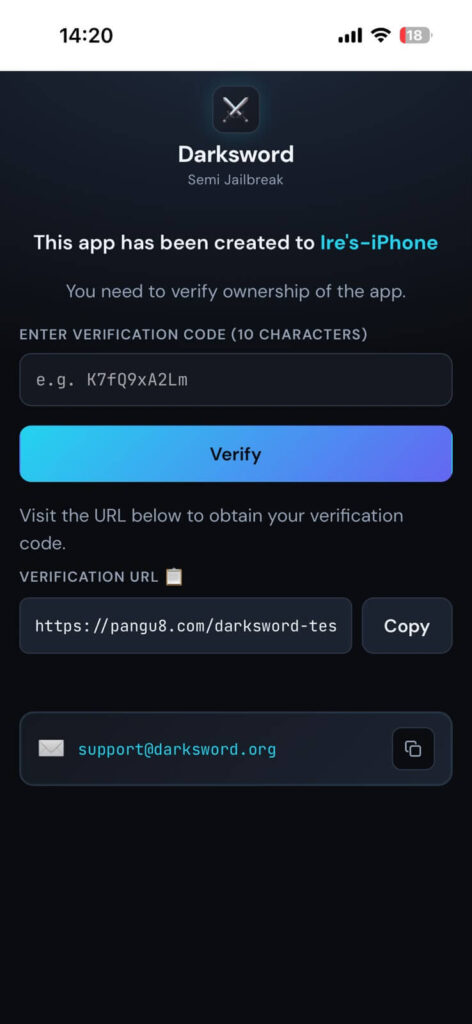
Step 6 – Install The certificate
Then you will get following screen and you can download the certificate, after download the certificate, open Settings to install it.
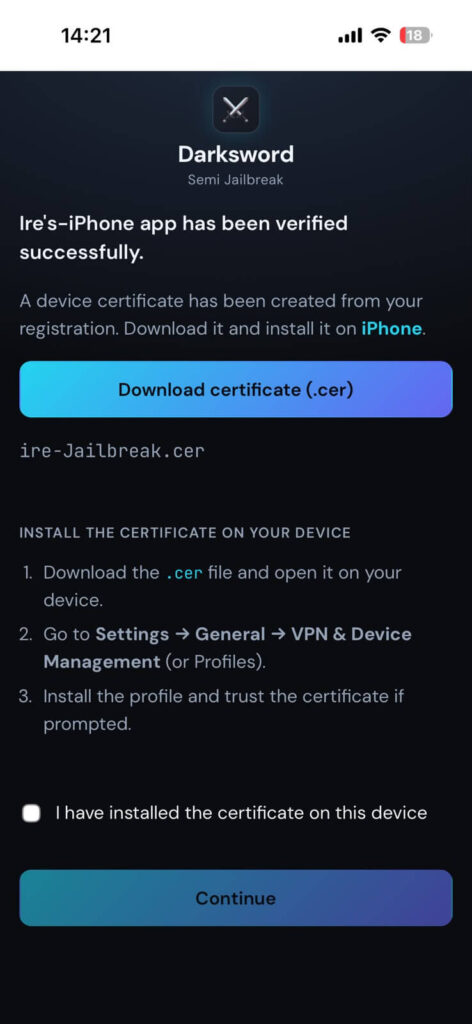
Make sure a certificate is issued in your name. Tick “I have installed the certificate on this device” and tap Continue. The DarkSword semi-jailbreak app will then open.
Step 7 – Now start Jailbreak process
⚠️ Warning:
✅Make sure your device is iOS 27 and higher.
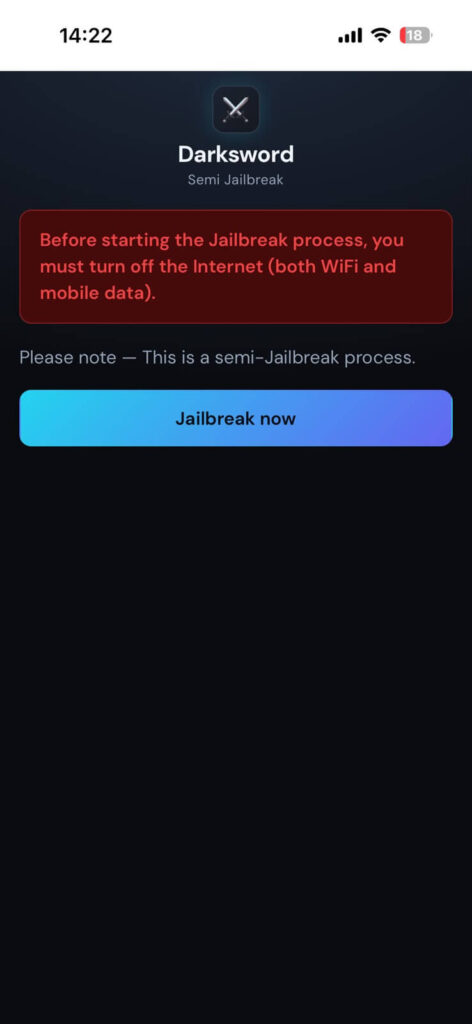
✅ Enabling airplane mode (turning off WiFi and mobile data)
Now click “Jailbreak now” button
If you see this apple logo filling screen you are right.

After the process, you must turn on the Internet. Tap the continue button.
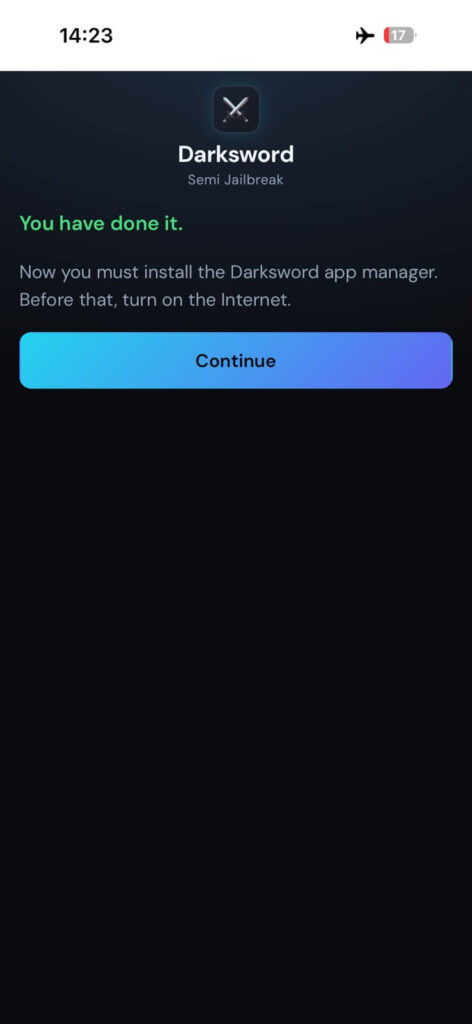
Step 8 – Install jailbreak app managers
Then you must install a Jailbreak app manager, we are highly recommended to install darksword app manager.
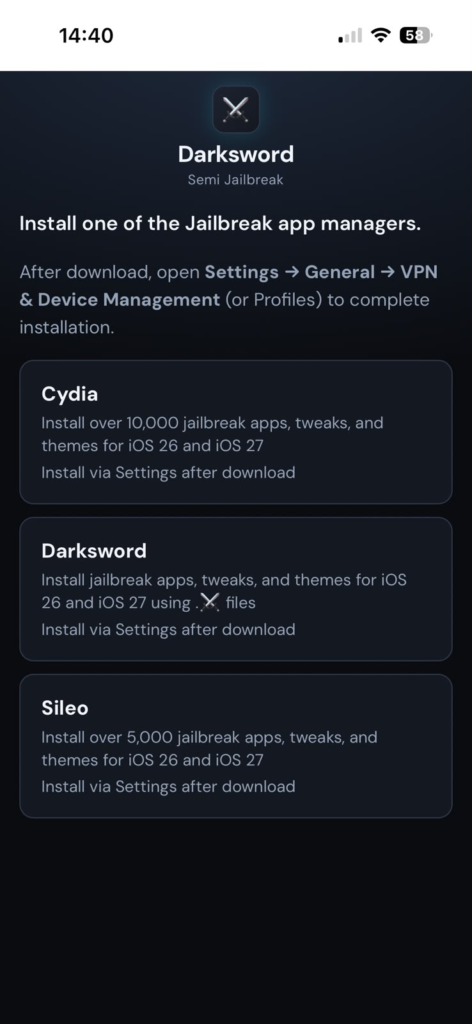
Tap on any app manager to download.
1. How DarkSword works with Jailbreak iOS 27 or iOS 27.0.1
DarkSword uses special Sword (.⚔️) files, which are required to install jailbreak apps, tweaks, themes, and customization tools on iOS 27 or iOS 27.0.1.
Step-by-Step Guide
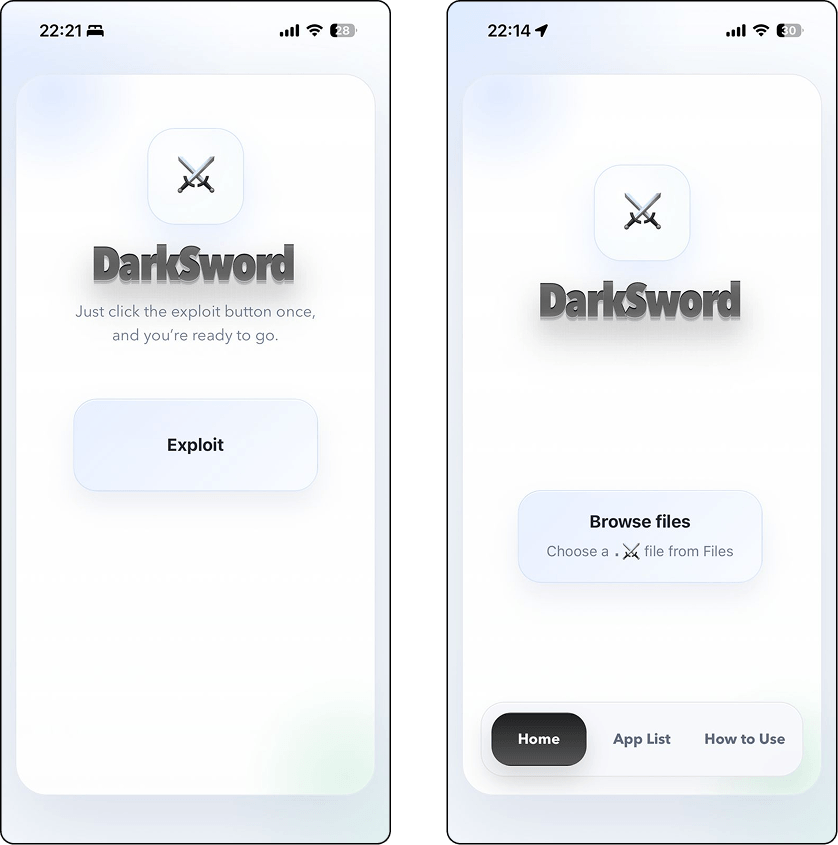
- Open DarkSword app manager.
Open the DarkSword app manager and tap on Exploit.
2. Download Sword Files
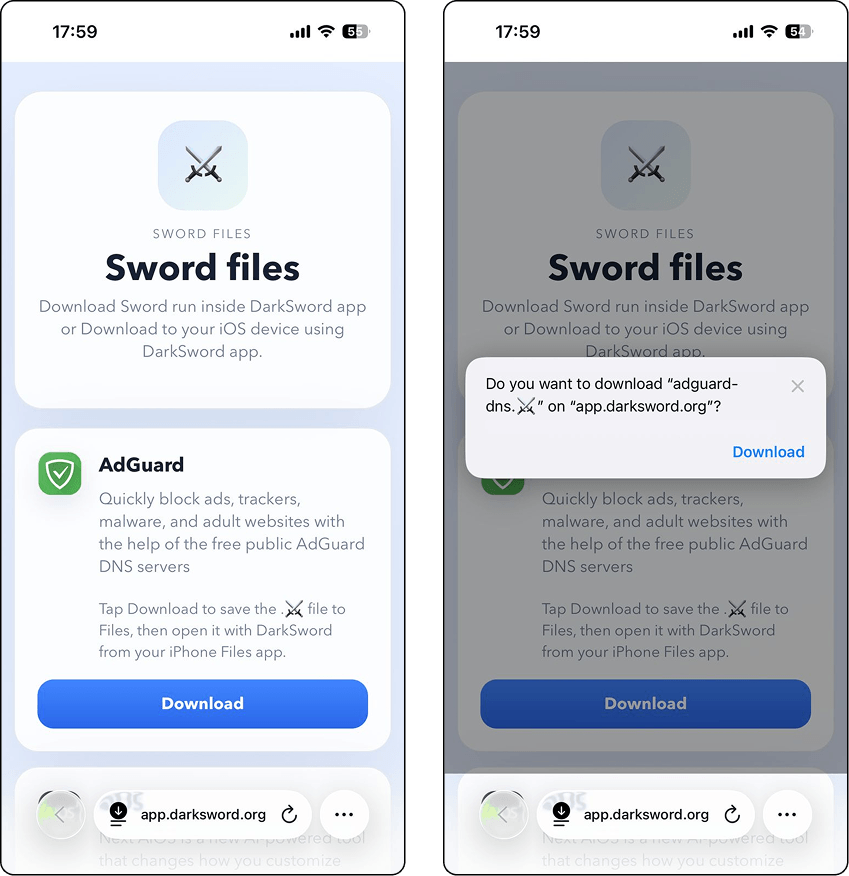
To enable apps and tweaks, you need to download Sword files.
- Visit the Official DarkSword Sword files page
- Download the required files directly to your Files app
- Make sure all files are saved correctly before continuing
These Sword files act as packages containing jailbreak apps and tools.
3. Run or Install Apps
After adding the Sword files:
- Open the DarkSword app
- Go to the App List section
- You will see all imported Sword files listed
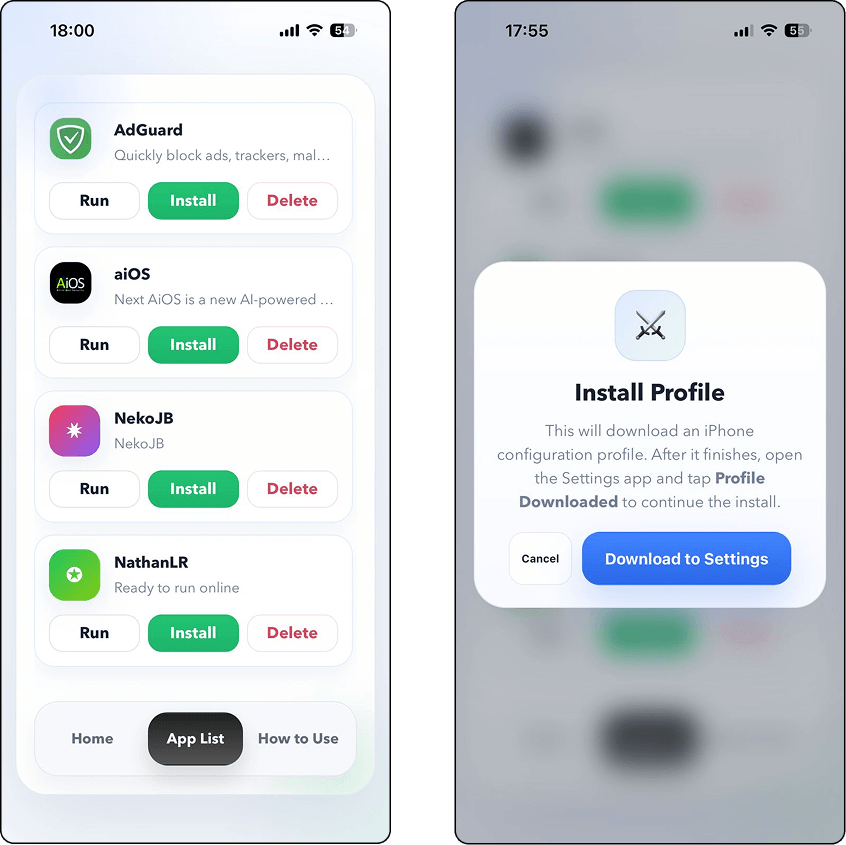
From here, you can:
- Run apps directly within the DarkSword environment
- Install app profiles, which will appear in your Settings for full installation
2. How Cydia works with iOS 27 Jailbreak
After completing the iOS 27 jailbreak process, you can access Cydia, one of the most popular jailbreak app managers. With Cydia, you can explore and install 5000+ jailbreak tweaks, apps, themes, and more.
Step-by-Step Guide
- Open the Cydia App
Launch the Cydia app manager from your Home Screen.
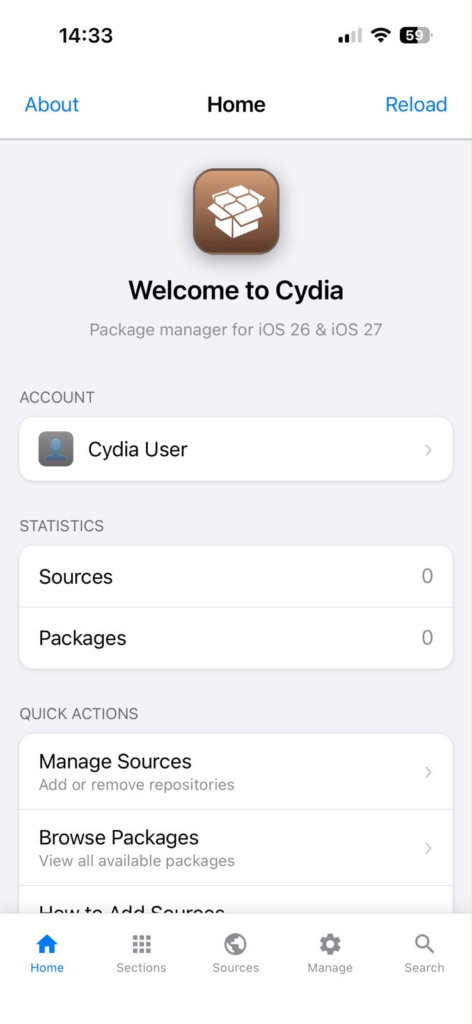
2. Go to Sources
Tap on the Sources tab at the bottom of the screen.

3. Access the Repository Page
Tap “+Add Repos”, you will be redirected to a Cydia repository page, where you can find 5000+ available packages.

4. Copy the Repository URL
Tap on Get Repo, then select Copy Repo.

5. Add the Repo to Cydia
Go back to the Sources tab in Cydia. Paste the copied URL and tap Add Repo.
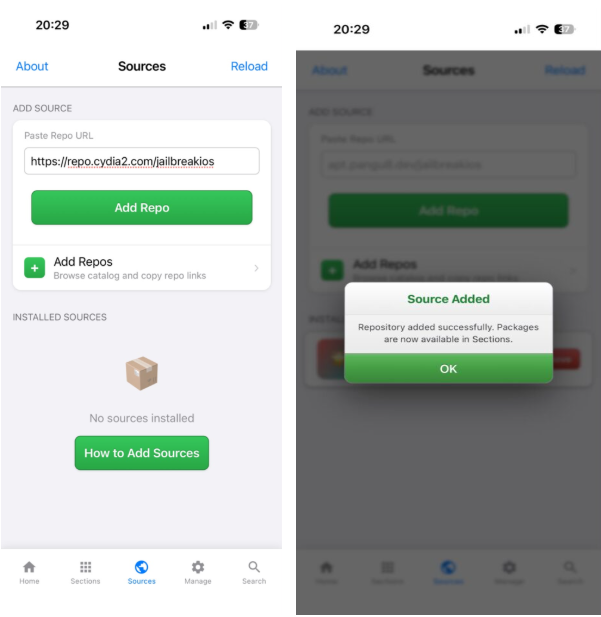
6. Browse and Install Packages
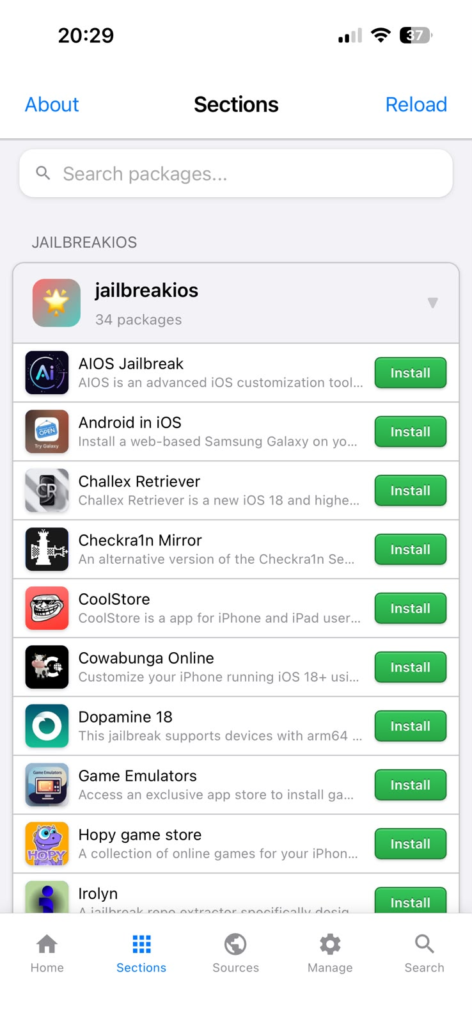
Once the repo is added, it will appear under the Sections tab. Open it to explore available jailbreak apps, tweaks, and themes, then install what you need.
3. How Sileo works with iOS 27 Jailbreak
Once the iOS 27 jailbreak is complete, Sileo becomes available as a fast and modern package manager, allowing you to explore and install a wide range of tweaks, apps, themes, and more.
Step-by-Step Guide
1. Open the Sileo App
Launch the Sileo app from your Home Screen.
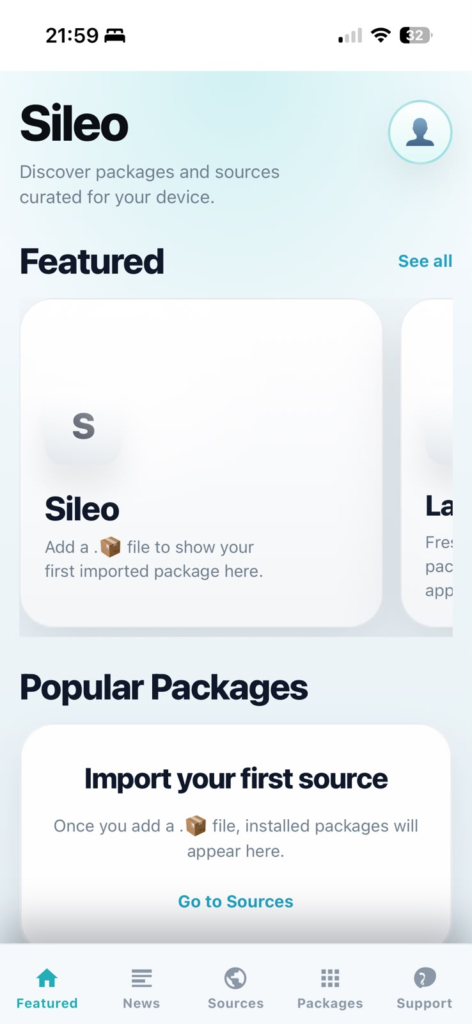
2. Go to Sources
Tap on the Sources tab at the bottom of the screen.
3. Add a Repository (Repo)
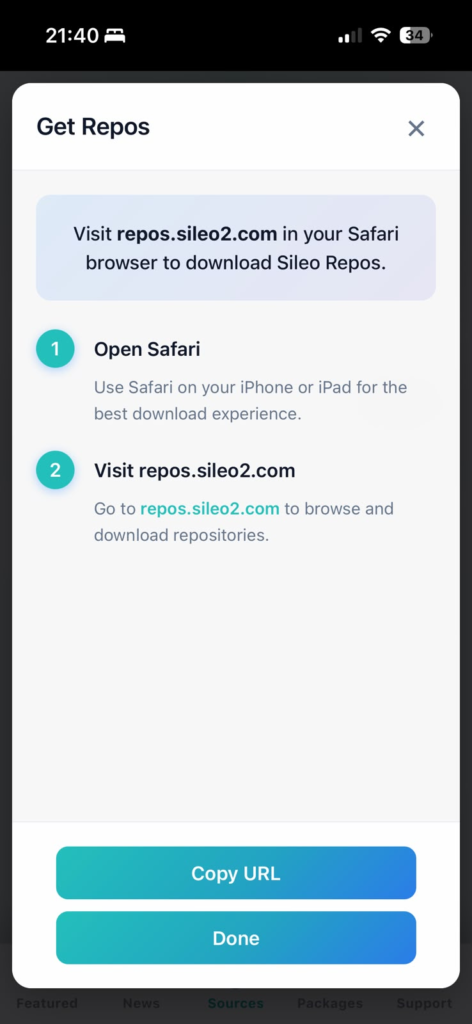
Tap Get Repos, then copy the repository URL. Tap Done, open Safari, paste the URL, and visit the repository page.
4. Download the Repository File
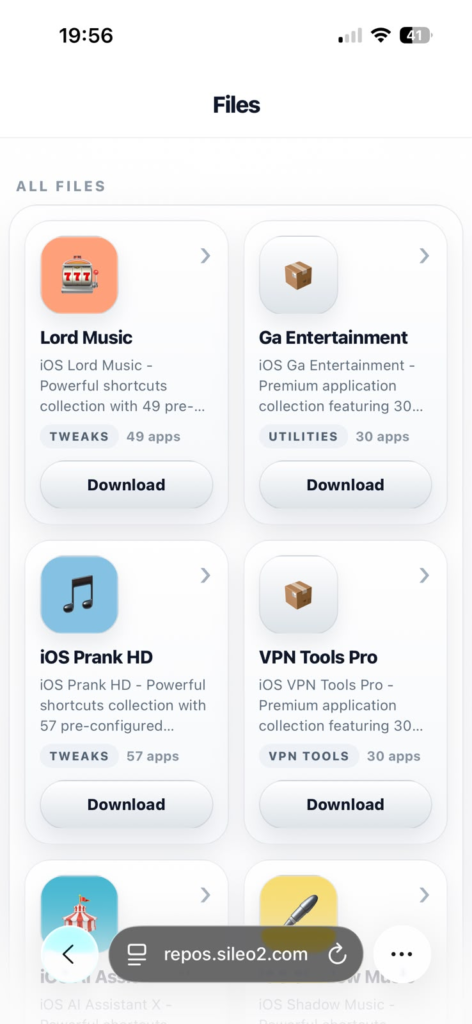
Browse the available Sileo packages and tap Download. The file will be saved to your Files app.
5. Add the Repo to Sileo
Return to the Sources tab in Sileo, tap Browse Files, and import the downloaded repository file.

6. Browse and Install Packages
Once added, the repo will appear under the Packages tab and in your installed sources. Open it to explore available jailbreak apps, tweaks, and themes, then install what you need.

You can now customize your device using Sileo with a wide range of jailbreak tools and features.
What iPhones will be getting iOS 27?
Apple confirmed that iOS 27 supports the same devices as iOS 26, meaning most modern iPhones are compatible.
Full supported list:
- Latest iPhone Duo, iPhone 18 Pro, iPhone 18 Pro Max
- iPhone 17 / 17 Pro / 17 Pro Max / 17e
- iPhone Air
- iPhone 16 / 16 Plus / 16 Pro / 16 Pro Max / 16e
- iPhone 15 / 15 Plus / 15 Pro / 15 Pro Max
- iPhone 14 / 14 Plus / 14 Pro / 14 Pro Max
- iPhone 13 / 13 mini / 13 Pro / 13 Pro Max
- iPhone 12 / 12 mini / 12 Pro / 12 Pro Max
- iPhone 11/11 Pro/11 Pro max
- iPhone SE 2nd generation and later
iPadOS 27 supported list : - iPad Pro (4th generation and later, M1 and later)
- iPad Air (4th generation and later, M2 and later)
- iPad (9th generation and later, A16)
- iPad mini (6th generation, A17 Pro)
How to experience iOS 27 before eveyone else?
You can now experience iOS 27 as an app before install the final version. Just follow the simple guide below to download and try iOS 27 before download the final version.
Step 01 – Tap the below button on your device safari browser. Pangu8 App Store will download as an initial step.
Step 02 – Then open the Pangu8 from your device homescreen, Search for iOS 27 Demo App, Tap to download and install. No Apple ID or password required. Just provide your device passcode if you have set up.
Step 03 – Go ahead with the Installation process and finally you will see the iOS 27 app icon on your device home screen.
Congratulations! Now you can get a different kind of experience with the iOS 27 demo.
Latest iOS 27 Jailbreak News & Updates
Stay updated with the latest iOS 27 jailbreak progress, tool releases, and compatibility changes. While a full jailbreak solution is still under development, several alternative methods and early-stage tools are already gaining attention.
*Chollima Jailbreak – Calif Demonstrates Untethered iOS 27.0.1 Jailbreak on iPhone 18 Pro
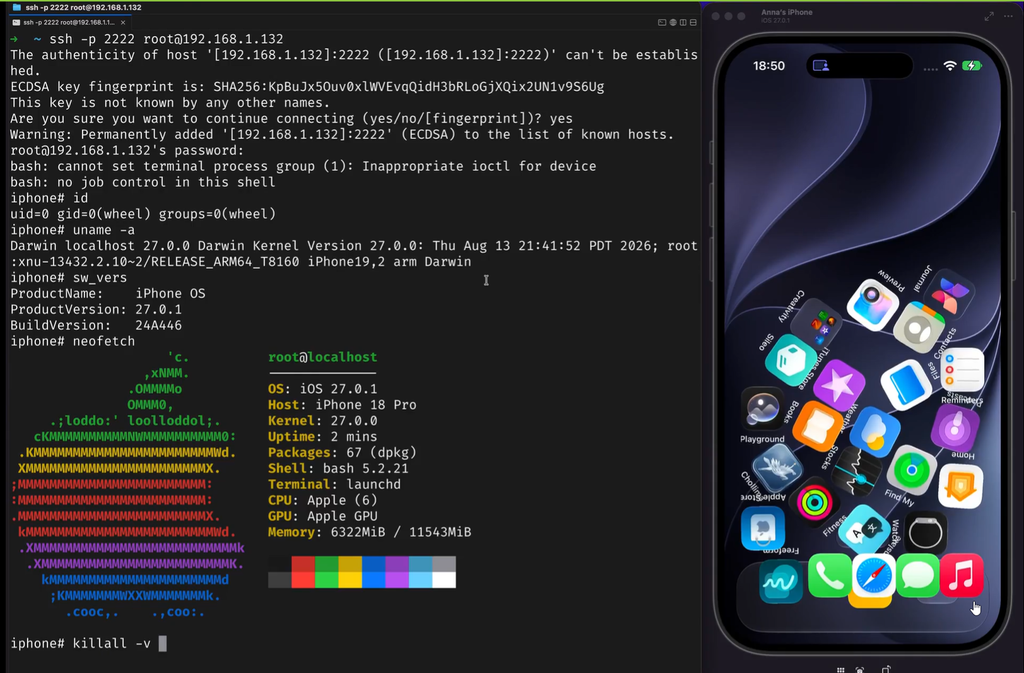
Exciting news for the iOS jailbreak community! Security researchers from Calif have reportedly demonstrated an untethered jailbreak running iOS 27.0.1 on Apple’s iPhone 18 Pro. It is named as Chollima Jailbreak. The demonstration took place at Hexacon 2026 in Paris, showcasing a significant development in modern iPhone jailbreak research.
The demonstration showed the device retaining jailbreak access after a complete reboot without requiring a computer to reactivate it. This is an important milestone because untethered jailbreaks are particularly challenging to develop on modern iPhones due to Apple’s advanced security protections.
What Makes This iOS 27 Jailbreak Demonstration Important?
An untethered jailbreak differs from conventional jailbreak methods because it can remain active after the device restarts. Users do not need to connect their iPhones to a computer or manually rerun a jailbreak application after every reboot.
During the reported demonstration, the researchers showed the iPhone 18 Pro restarting and returning to its normal lock screen. They subsequently demonstrated root-level access, indicating that the device had been successfully modified beyond Apple’s standard software restrictions.
If this research leads to a publicly available jailbreak, it could open new possibilities for users who want to customize their iPhones, install additional tweaks, and explore features unavailable through the standard iOS interface.
Which Devices and iOS Versions Are Compatible?
The reported demonstration specifically involved an iPhone 18 Pro running iOS 27.0.1. This is encouraging for jailbreak development on Apple’s latest hardware, but it does not establish compatibility with every iPhone model or every iOS 27 release.
Compatibility with other devices, including the iPhone 18 Pro Max and earlier iPhone generations, remains unconfirmed by this demonstration.
*CryptSn0w Jailbreak – iOS 27 TSS Jailbreak Source Code Released
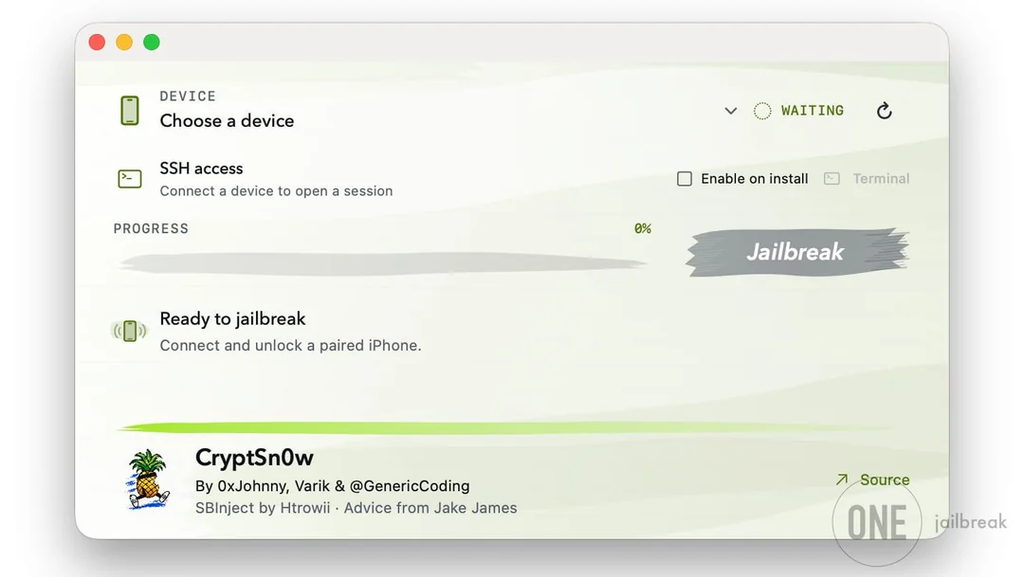
CryptSn0w is an experimental iOS jailbreak project developed by 0xjohnnydev and contributors. It integrates components such as Sileo, ElleKit, and SBInject, using a Cryptex-based installation approach.
The project’s source code is available on GitHub for developers and jailbreak researchers. However, the developer states that Apple has patched the TSS/Cryptex vulnerability required by its original installation method, making it obsolete for new installations.
Note: CryptSn0w should not be considered a working jailbreak for the latest iOS versions.
*USB Exploit Breakthrough for iOS 27
A newly discovered USB-based SecureROM exploit known as “usbliter8” has sparked attention in the jailbreak community, as it reportedly targets devices like the iPhone 11 Pro running iOS 27. Since SecureROM exploits operate at the hardware level, they cannot be patched by standard iOS updates, making them highly valuable for future jailbreak development. However, experts note that this exploit is still in early research stages and has not yet been developed into a full public jailbreak tool, meaning users cannot rely on it for immediate jailbreak access..
*SideInstaller – No PC Sideloading Tool
A new tool called SideInstaller is gaining traction in the iOS 27 community, offering a no-PC method to install SideStore and LiveContainer directly on iPhone devices. Unlike traditional sideloading setups that require a computer, this tool handles pairing, signing, and installation fully on-device, making it much easier for beginners to get started. According to early community discussions, it simplifies the entire process into a few steps, removing one of the biggest barriers in iOS app sideloading. However, since it is still in early stages and relies on certificates, users may experience stability issues or revokes, so it should be used with caution until more stable implementations are released. Read more about Sideinstaller.