
iOS 27.2 Jailbreak
The iOS 27.2 jailbreak method is now available, powered by the powerful Darksword exploit. Follow the step-by-step guide below carefully and complete each step to generate your iOS 27.2 jailbreak app instantly.
However, iOS 27.2 is currently in beta stage only, read the guide for how to install the iOS 27.2 beta safely.
If you are on the older iOS version, refer to the iOS 26.7 Jailbreak, iOS 26.6 Jailbreak or iOS 26.5 Jailbreak pages for more information.
Darksword semi jailbreak method for iOS 27.2
This newly released open-source project was developed by @Rexto and introduced as a solution for the iOS 27 Jailbreak for the first time. After several years, a successful jailbreak method has finally been made available for Jailbreak iOS 26 & higher.
Online Guide
This method allows you to create a custom jailbreak app based on your device data. The process is simple, but it’s important to follow every step carefully. Do not skip any part, even if it seems easy.
The procedure is divided into four three key steps.
Stage 01 : Generate the personalized iOS 27.2 Jailbreak
Step 1 – Save Your Device Data
Begin by backing up your device information.
Click the button below to download your device data file:
This will create a file called yourname-yourdevice.json.
If the download works:
- The button will turn blue
- The file will be stored in your Files app
Step 2 – Generate the Jailbreak App
Now, use the file you saved to build the jailbreak app.
Upload the yourname-yourdevice.json file using the button below:
⚠️ Note: Make sure to use the Safari browser for this step.
When the process is done:
- Tap Continue
- Tap Download mobileconfig
- Tap Allow
- Then install the generated app on your device
Stage 02 : Download/Install & verify the iOS 27.2 Jailbreak app
Step 3 – Install the Jailbreak App
Open Settings
Find the downloaded app
Enter your device passcode to install it
Step 4 – Check App Details
Launch the installed app and confirm the following:
- Your name
- Your device details
If everything looks correct, move on to the next step.
⚠️ If something is wrong, go back to Step 2 and generate the app again.
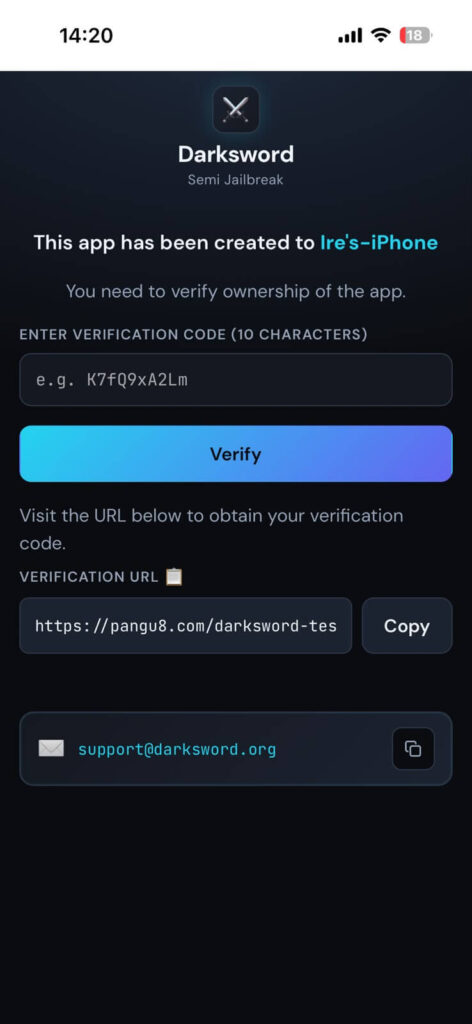
Step 5 – Verify the App
To finish the setup, you’ll need to verify the app.
Tap the button below:
Upload your saved device file once more
Generate the verification code
This confirms the app was made specifically for your device.
Once these steps are complete, your personalized jailbreak app is ready to use.
Stage 03 : iOS 27.2 Jailbreak Process
Launch the App
Open the personalized jailbreak app on your iOS 27.2 device to begin.
Download and Install the Certificate
On the first screen, download the required jailbreak certificate.
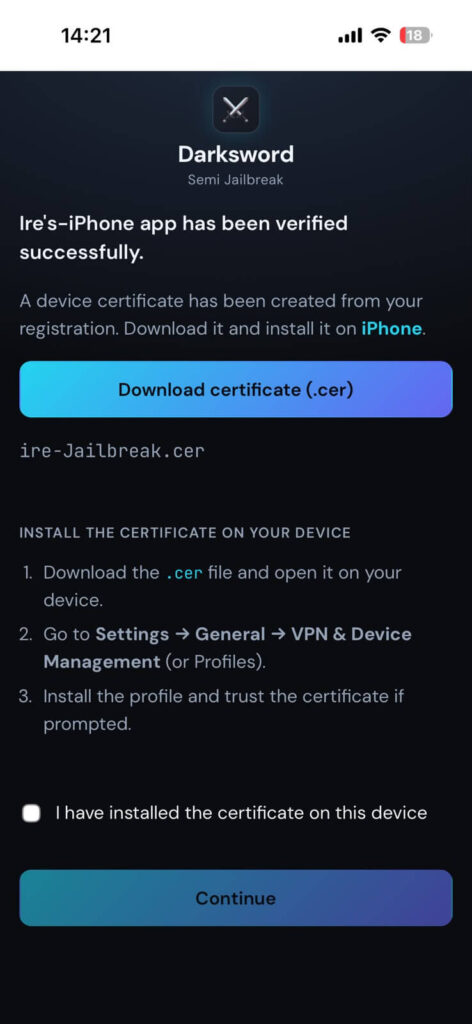
- Once the download finishes, open Settings and install it.
- Confirm that the certificate is issued under your name.
- Return to the app, tick “I have installed the certificate on this device,” and tap Continue. The app will relaunch on its own.
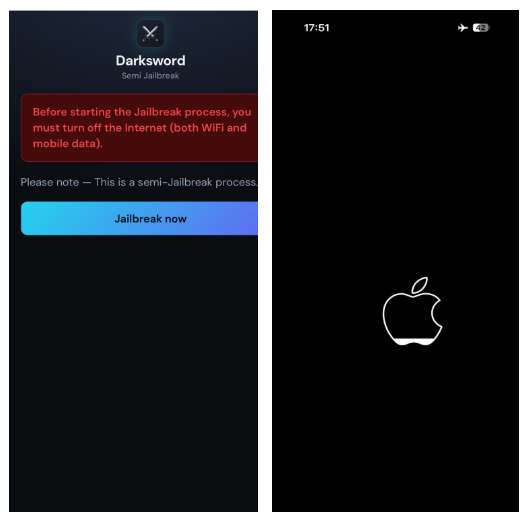
Tip: Turn on Airplane Mode (disable both Wi-Fi and mobile data) before proceeding. This is a required step and noticeably improves the success rate.
Run the Jailbreak
Tap Jailbreak Now and wait for the process to finish. Avoid closing the app or locking your device while it runs.
Stage 04: Install a Jailbreak App Manager
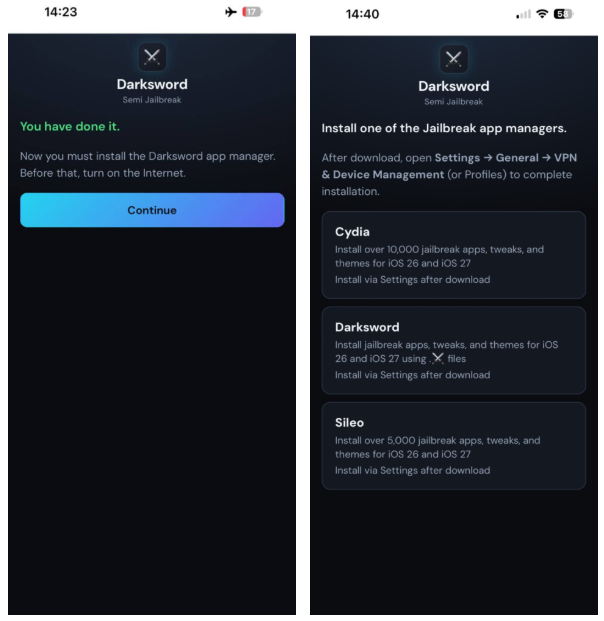
When the jailbreak completes, tap Continue. Make sure your internet connection is active for this part.
You’ll be presented with options such as Cydia, DarkSword, or Sileo. Pick one and install it.
Follow the on-screen instructions. A configuration profile will appear in Settings, install it by entering your device passcode.
That’s it, you’re jailbroken. From here, you can explore any of the guides below to start installing tweaks, apps, and themes.
How to Use Cydia on iOS 27.2
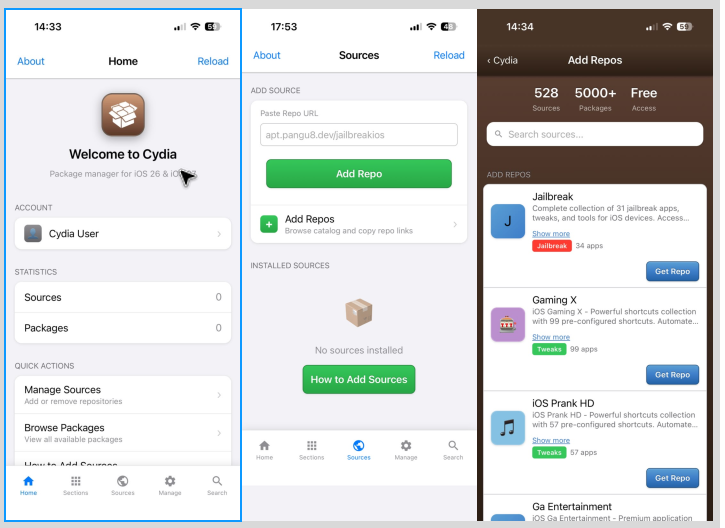
Cydia is the classic jailbreak package manager, giving you access to thousands of tweaks, apps, and themes in one place.
- Open Cydia from your Home Screen.
- Tap the Sources tab in the bottom menu — this is where all repositories are managed.
- Select + Add Repos to open the repository section, where you can browse a large catalog of packages.
- Tap Get Repo, then choose Copy Repo to save the repository link.
- Go back to Sources, paste the link into the field provided, and tap Add Repo.
Once added, the repository appears under the Sections area in Cydia. Open it to browse available jailbreak apps, tweaks, themes; then install whatever you like.
How to Use DarkSword on iOS 27.2
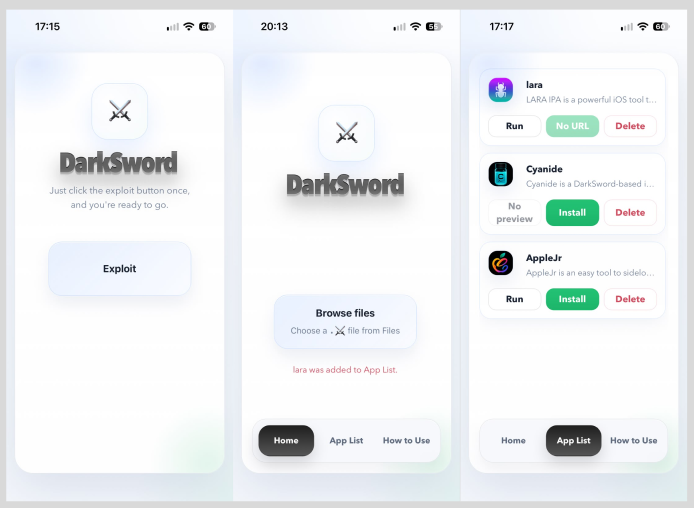
DarkSword is a modern app manager built around special Sword (.⚔️) files.
Getting Started
- Open the DarkSword app.
- Tap the exploit button to proceed.
Install Sword Files
Sword files are essential; without them, you can’t install jailbreak apps, tweaks, themes, or customization tools.
- Visit the official Sword file directory: https://app.darksword.org/swords
- Download the Sword files directly to your Files app.
- Make sure they’re saved properly on your device.
These files act as the core components that let DarkSword run jailbreak apps.
Run or Install Jailbreak Apps
Once the Sword files are in place:
- Open the DarkSword app.
- Go to the app list section, you’ll see all imported apps and tweaks.
- From here you can either run apps directly inside the DarkSword environment, or install them as profiles through the Settings app.
This lets you enjoy a wide range of jailbreak apps, themes, and tweaks without modifying the system core.
How to Use Sileo on iOS 27.2
Sileo is a fast, modern package manager, a popular alternative to Cydia.
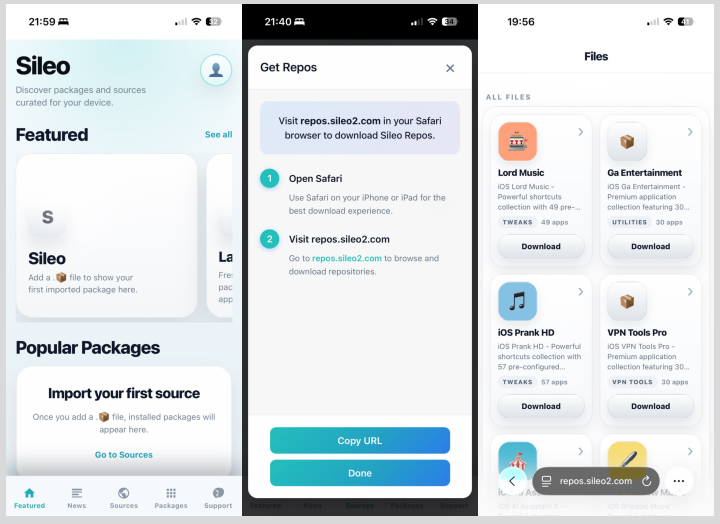
- Open Sileo from your Home Screen.
- Tap the Sources tab in the bottom menu.
- Tap Get Repos to view available repositories, then copy the repository link and tap Done.
- Open Safari, paste the copied URL, and load the repository page.
- Browse the available Sileo packages and tap Download to save the repository file to your Files app.
- Return to Sileo, open Sources again, choose Browse Files, and locate the downloaded file. Import it into Sileo to add the repository.
Once added, the repository will appear under the Packages tab and in your sources list. Open it to explore jailbreak apps, tweaks, themes and install anything you need to start customizing your device freely.
How to get iOS 27.2 developer beta?
Here’s the official and safest way to get the iOS 27.2 Developer Beta 3 👇
⚠️ Before You Install (IMPORTANT)
- Backup your iPhone (iCloud or iTunes)
- Beta versions are unstable (bugs, battery drain, app crashes)
- Best to install on a secondary device
✅ Step 1: Create an Apple Developer Account
- Download the Apple Developer app or go to the developer website
- Sign in with your Apple ID
- Register (it’s now free, no need to pay)
✅ Step 2: Enable Developer Beta on Your iPhone
Once your account is ready:
- Open Settings
- Go to General → Software Update
- Tap Beta Updates
- Select iOS 27.2 Developer Beta 3
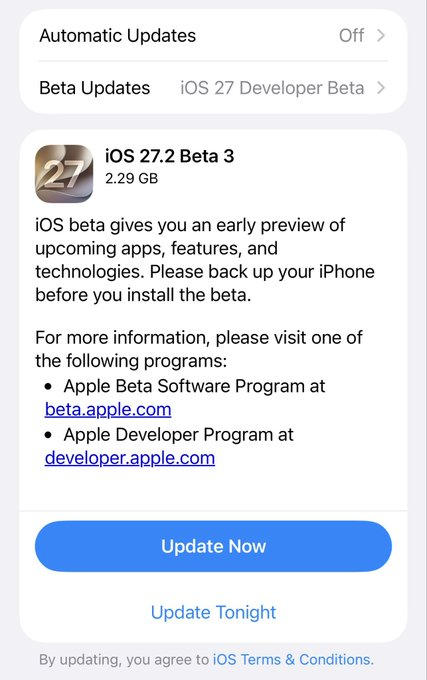
👉 Apple now lets you enable beta updates directly from settings (no profiles needed)
✅ Step 3: Download & Install
- Go back to Software Update
- You’ll see iOS 27 Developer Beta 3
- Tap Download and Install