
doublera1n Jailbreak
doublera1n jailbreak is an open-source project by developer 34306 that creates a secondary, rootless jailbroken iOS environment on selected iPhone 11 devices. Instead of replacing the phone’s normal System volume with custom firmware, it keeps the stock System volume sealed and untouched and uses a separate data volume mounted as /private/var. The secondary environment boots with a patched kernel and iBoot after the device is placed into pwned DFU using usbliter8.
The project was designed to address drawbacks the developer encountered with custom-firmware dual booting, including extra storage use and returning to recovery mode after reboot. A normal reboot still starts the stock iOS environment. To return to the jailbreak environment, the phone must be put back into pwned DFU and booted again with the project script. This makes the workflow tethered and computer-assisted.
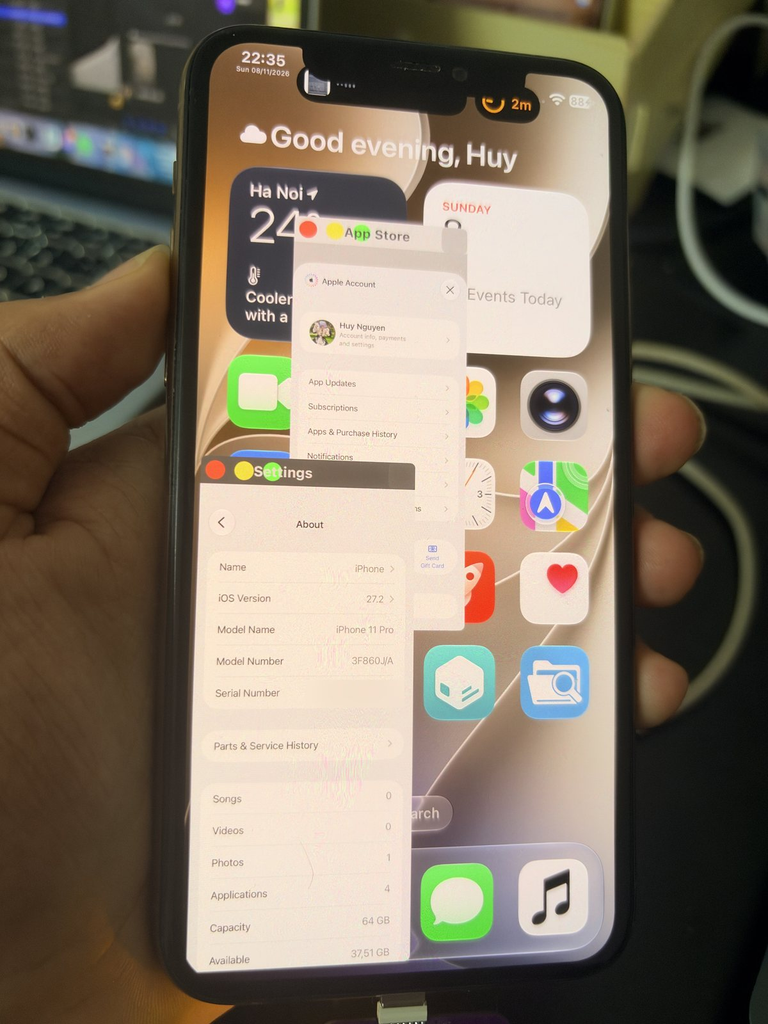
Compatibility:
Devices : iPhone 11, iPhone 11 Pro, iPhone 11 Pro Max
[ iPhone12,1 (n104ap), iPhone12,5 (d431ap), iPhone12,3 (d421ap) ]
iOS versions : iOS 27 to iOS 27.2
Currently doublera1n works only for Jailbreak iPhone 11 series, for other devices jailbreak, refer to the iOS 27 Jailbreak and iOS 27.2 Jailbreak pages.
Important limitations and risk
- The secondary data partition has SEP disabled. The project says you cannot sign in to iCloud in that environment.
- The project author says FairPlay still works, so applications can run; this is an author-reported behavior, not a guarantee for every setup.
- Every full reboot returns you to stock iOS. Re-entering the jailbreak state requires the RP2350 board and a Mac to boot it again.
- This is experimental low-level device modification. A wrong build, interrupted process, hardware problem, or software bug can cause data loss or leave the device needing recovery.
- Back up first, use a device you own, and do not depend on this setup for your only copy of important data or for iCloud services.
What you need
- A supported iPhone 11, iPhone 11 Pro, or iPhone 11 Pro Max.
- An Apple silicon Mac with Homebrew installed.
- An RP2350-based usbliter8 board configured for pwned DFU. The project recommends using the board image shown in its documentation.
- A reliable Lightning data cable and a direct USB connection for the phone and board. Avoid improvised wiring unless you understand the board’s documented electrical layout.
- Enough free space for the project files, a local Python virtual environment, and the secondary data volume.
- A complete backup and time to read the current project instructions before beginning.
The setup script installs the Homebrew utilities named in the project notes: libimobiledevice, libirecovery, ldid, libusb, and ipsw. It also creates a local Python virtual environment from the included requirements file. Run setup again if that local environment needs repair.
Setup guide for doublera1n Jailbreak
1. Confirm the exact device and iOS build
Identify the model number and install iOS build in Settings before connecting anything. Compare both against the compatibility notes. Do not assume an iPhone 11 family model is verified just because it appears in the device list. At the time of the project’s notes, only iPhone 11 Pro on build 24B119 had a reported successful boot.
2. Back up and prepare the Mac
Make an encrypted computer backup or another backup you have verified can be restored. Install Homebrew if needed. Obtain the project files from the official project repository, open Terminal in that project folder, and run its setup script:
./setup.sh
This prepares the Mac-side dependencies and Python environment. Review the script and its dependencies before running them. If setup reports missing tools or fails, resolve that first rather than continuing to a device operation.
3. Run the menu and select a build
Connect the phone by USB, then start the menu:
./dualboot.sh
Use the menu controls shown by the tool (It describes the up/down arrows and Enter). Select the iOS version or build installed on the phone and run the pre-check. The pre-check retrieves the required firmware components, builds a device/build profile, applies the relevant patches, and checks TSS information before installation. Project notes say it extracts a limited set of components, about 70 MB, and does not touch the phone during this pre-check.
Release builds are sourced by the tool from ipsw.me and beta or release-candidate builds from AppleDB. If your build is not available there, the project says you may provide an IPSW file or URL yourself. Use the exact build installed on your phone.
4. Install the secondary data volume
Only choose Install 2nd Data when the secondary volume (DataB) does not already exist. This is the step that prepares the additional data environment. Do not interrupt the process or disconnect the phone while it is running. Follow the live prompts and stop if the build pre-check fails or the tool reports an unsupported patch.
5. Enter pwned DFU and boot
Put the phone into DFU mode using the device-specific instructions, connect it to the configured RP2350 usbliter8 board, and confirm that the board reports a successful pwned-DFU state. Then reconnect the phone to the Mac as directed by the project and run:
./boot.sh
The phone should boot the secondary jailbreak data environment. The project describes this boot as sending the prebuilt boot chain and waiting for the second data environment over SSH. If it returns to stock iOS or the boot does not finish, do not repeatedly try unrelated firmware builds; see Troubleshooting below.
Booting and using it
After a regular reboot
A regular reboot starts the stock iOS system. The jailbreak state does not persist across that reboot. To use the secondary environment again, connect the configured usbliter8 board, put the phone in pwned DFU, reconnect it to the Mac, and run ./boot.sh from the project folder.
Menu options
- Boot 2nd Data: sends the prepared boot chain and waits for the secondary data environment.
- Select iOS version: selects the build installed on the phone and runs a pre-check.
- Install 2nd Data: creates the DataB volume when it is absent.
- Re-apply fixes: pushes the userland fixes again while the secondary environment is running.
- SSH into 2nd Data: connects through iproxy to the phone’s secondary environment.
- Remove 2nd Data: deletes DataB and the project’s files in Preboot, returning to one stock OS setup.
Because the secondary partition cannot sign into iCloud according to the project notes, plan on using stock iOS for iCloud-dependent tasks and normal day-to-day use unless the project documentation changes.
Removing the secondary environment
If you want to return to the single stock OS setup, use the menu’s Remove 2nd Data option. This deletes the DataB volume and the project’s files in Preboot. This is a data-removal action: save anything you need from the secondary environment first. Confirm the menu selection carefully and keep the phone connected until it reports completion. If the tool is not working, consult the current project guidance before manually deleting APFS volumes or Preboot files.
Troubleshooting and common questions
The pre-check fails or says a patch cannot be found
Confirm the exact build number and that the matching IPSW is being used. The project locates patch sites again for each selected build, and iOS changes can move or alter those sites. If the check still fails, treat that build as unsupported and wait for updated project support rather than forcing installation.
The phone boots stock iOS instead of the jailbreak environment
That is expected after a normal reboot. Check that the phone is in pwned DFU, the configured board succeeded, and you ran ./boot.sh from the project folder after reconnecting the phone to the Mac.
The board does not enter pwned DFU
Use only a board and firmware configuration documented for usbliter8. Confirm the board is powered, the cable supports data, and the phone entered DFU mode rather than Recovery mode. Follow the board’s own status indicators and instructions. Avoid changing wiring or flashing an image for a different board without checking its documentation.
Can I use iCloud in the second environment?
No: SEP is disabled for the second data partition, so iCloud sign-in is unavailable there. Use the regular stock system for iCloud services.
Is every iOS 27- iOS 27.2 device supported?
No. Even if it lists iOS 27- iOS 27.2 for the main operating system, it says the only successful boot so far was on an iPhone 11 Pro running iOS 27.2 build 24B119. That means the listed range is a target, not proof that every device and build works. A build can change patch locations; support may require the developer to update offsets and patches. Check the latest project notes and issue reports immediately before trying anything.